ReWindow Buy now – €12.99

Your desk, the way you left it.

ReWindow reopens your apps after Windows restarts and puts every window back on the same monitor, in the same spot, at the same size, on the same virtual desktop.

Then Windows restarts for an update.

Every app closes. Normally the next ten minutes go to finding each one and dragging it back where it belongs.

ReWindow puts it all back.

After you sign in, it opens each app again and returns every window to its monitor, position and size. Maximized stays maximized, minimized stays minimized.

On every virtual desktop.

Windows go back to the desktop they came from, so desktop 2 and 3 look exactly as you left them.
Why I built ReWindow

I work with a lot of windows open, and every one of them has its place. The editor on the big screen, mail on the wide one below, dashboards up top, remote sessions tucked away on a second desktop. Everything sized and arranged exactly the way I like it, across several monitors and, yes, the madness of multiple virtual desktops.

So I came to dread Windows updates. Not the update itself, but the restart that comes with it: signing back in to an empty desk, then spending the next twenty minutes reopening apps, dragging each window back to its screen, resizing it, and remembering which desktop it lived on.

ReWindow is the tool I wanted for that moment. If you arrange your windows as carefully as I do, and a restart feels like losing your desk, it's for you too.

Joaquim, maker of ReWindow

How it works

ReWindow sits in the tray. You don't have to remember to save anything, and there's nothing to set up before a restart.

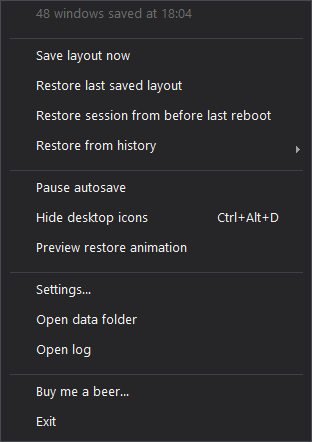
Its menu shows when your layout was last saved, and lets you restore it, go back to an older one, or save right now.

ReWindow's tray menu: 48 windows saved at 18:04, Save layout now, Restore last saved layout, Restore session from before last reboot, Restore from history, Pause autosave, Hide desktop icons (Ctrl+Alt+D), Preview restore animation, Settings, Open data folder, Open log, Buy me a beer, Exit.
  1. While you work

    Every 30 seconds it notes which apps are open, which file or server each window shows, and where every window sits. When Windows starts shutting down it stops saving, so a half-closed desk never replaces your real layout.

  2. When you sign in

    It waits for the taskbar and for all your monitors to wake up, adds any missing virtual desktops, and looks at what's already open so nothing starts twice.

  3. Then it rebuilds your desk

    It starts the missing apps, places each window as it appears, and keeps an eye on them for a few seconds more, because some apps like to move themselves right after opening.

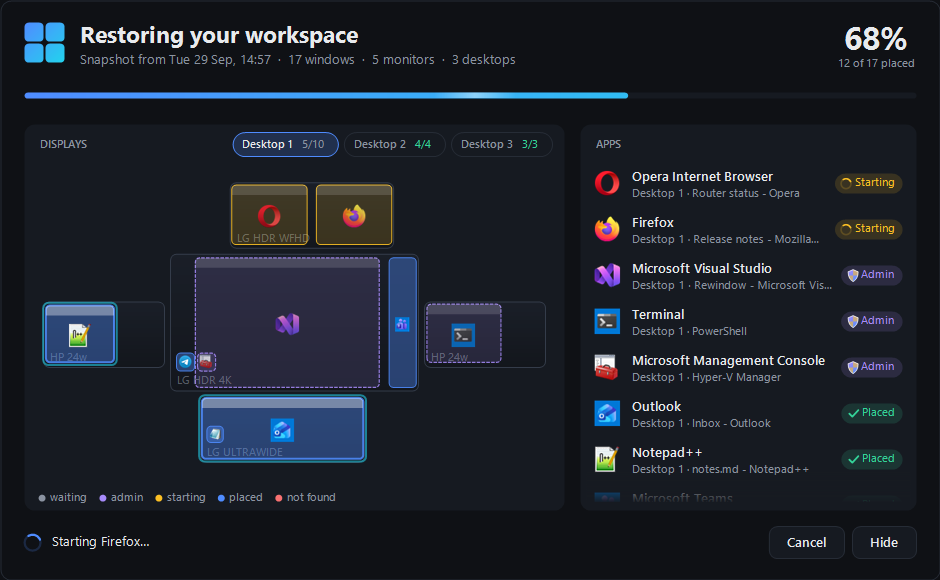
ReWindow's progress window mid-restore: a map of five monitors with windows lighting up as they are placed, and a list of apps marked Starting, Admin or Placed.
While it works, every window lights up on a map of your monitors as it lands.
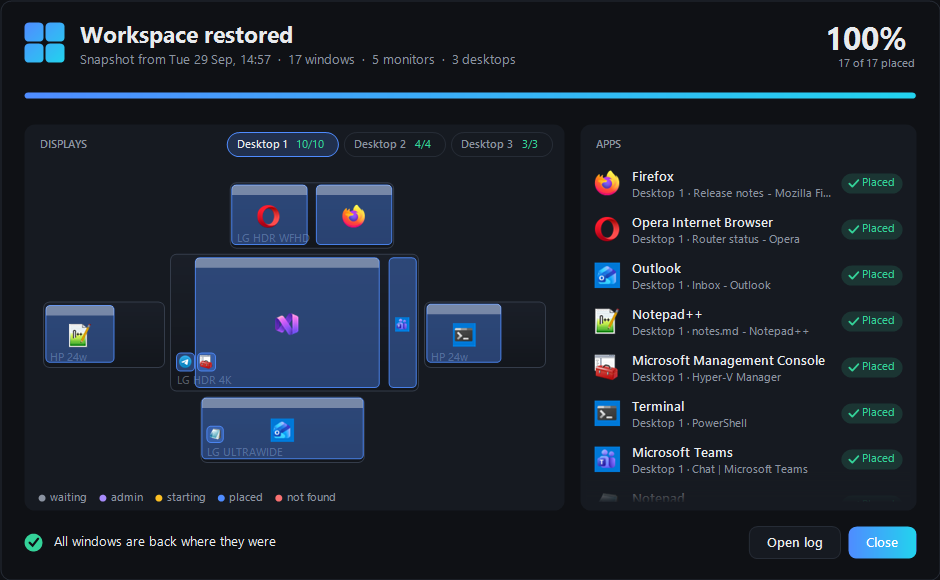
ReWindow's progress window after restoring: 17 of 17 windows placed across three desktops.
When everything is back, it tells you so and gets out of the way.

The details it gets right

Putting windows back sounds simple. These are the parts that usually go wrong.

The right monitor, even with identical ones

Monitors are recognised by their hardware, not by "Display 5", which Windows renumbers. Two identical screens side by side still get their own windows.

Every virtual desktop

Windows return to the desktop they were on. Missing desktops are created, and windows shown on all desktops stay that way.

Size and state, exactly

Maximized, minimized, snapped side by side or somewhere in between, at the size you left it. Monitors with different scaling are handled too.

Nothing opens twice

Apps that start on their own at sign-in, or that Windows reopened itself, are found and put in place instead of being started again.

Your files and servers

A window showing a document reopens that document. Remote Desktop windows reconnect to the same computer. Browsers restore their own tabs.

Apps that run as administrator

One Windows prompt for all of them, not one per app. More on that below.

Watch it happen

A progress window shows a live map of your monitors, with each window lighting up as it lands. It closes on its own when everything is back.

It stays on your PC

No account, no cloud, nothing sent anywhere. Your layouts are small files in your own profile, with the last 30 kept as history.

Go back to an earlier layout

Rearranged everything and regret it? Pick an older layout from the tray menu, or the one from before the last restart.

Hide your desktop icons in one keystroke

Press Ctrl+Alt+D to clear the icons off your desktop for a screen share or a tidy screenshot, and again to bring them back. The shortcut is yours to change.

Monitors that come and go

When a screen is unplugged, wakes up from sleep or reconnects, Windows piles its windows onto the others. ReWindow puts them back where they belong, without starting anything.

A layout for every desk

Docked at the office, laptop only at home, three screens on the trading desk: ReWindow keeps a layout for each monitor setup and uses the right one by itself.

One prompt for all your admin apps

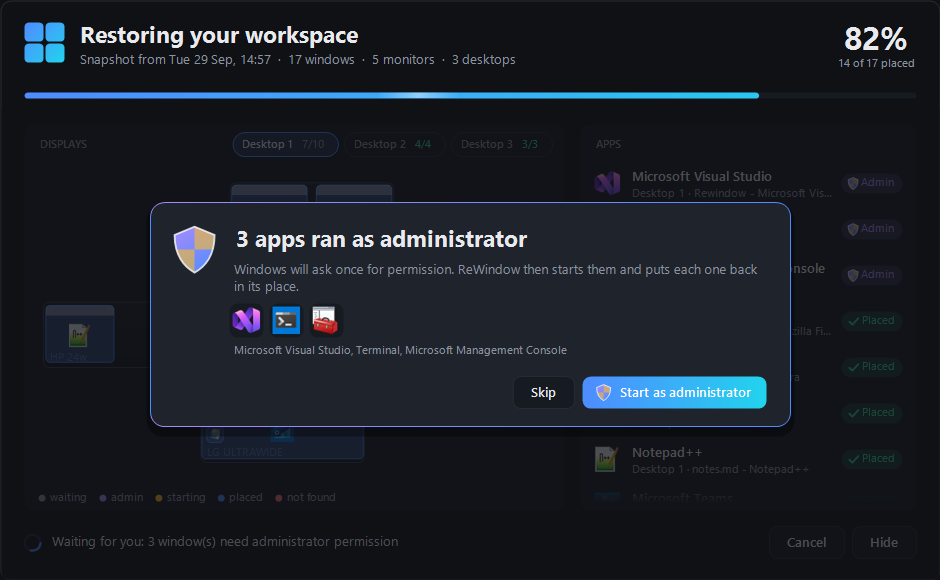
Some apps run as administrator, like a terminal, Hyper-V Manager or Visual Studio started with "Run as administrator". Windows won't let an ordinary program start or move those without asking you.

ReWindow brings back everything else first, so nothing waits on you. Then it asks once. Click Start as administrator, answer a single Windows prompt, and they all open and move into place. Click Skip and they stay closed.

ReWindow's progress window asking: 3 apps ran as administrator. Buttons: Skip, Start as administrator.
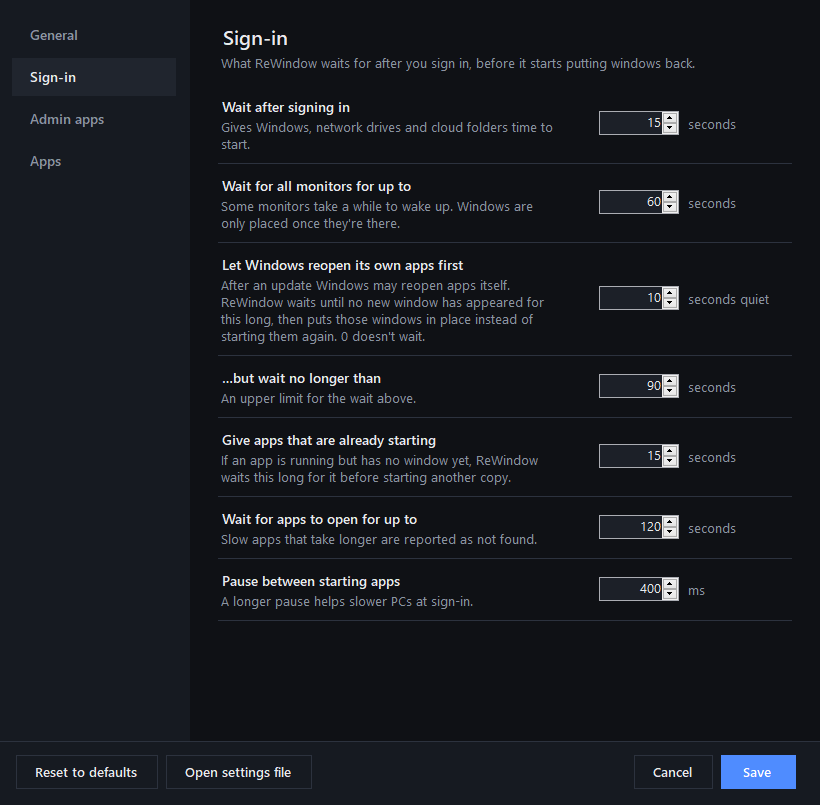
ReWindow's settings window on the Sign-in page, with how long to wait after signing in, for monitors, and for Windows to reopen its own apps.

Works out of the box. Adjustable when you want.

The defaults suit most desks. If your monitors are slow to wake up, your PC takes a while after signing in, or Windows reopens some apps on its own after an update, you can tell ReWindow how long to wait for each.

You can also pick apps it should never touch, and apps it should put in place but never start. Everything is in one settings window, with a plain explanation next to each option.

What you need

Windows 10 (version 1809 or later) or Windows 11
64-bit. Any number of monitors in any arrangement, with any scaling.
Nothing else to install
Everything ReWindow needs comes with it, .NET included.
No administrator rights
It installs just for you and runs as you. Admin rights are only needed if you install it for all users, or want admin windows moved into place without a prompt.
About 145 MB of disk space
Plus a few kilobytes per saved layout.

What it doesn't do

  • It brings back windows, not what was in memory. Text you never saved comes back only if the app restores its own session, as browsers, Office and most editors do.
  • Console windows running a script are put in place if they're open, but never started again, so no script runs twice by surprise.
  • In Windows 11 File Explorer, only the first tab of each window reopens.
  • Moving windows between virtual desktops relies on parts of Windows that can change in big updates. If that happens, windows come back on your current desktop until ReWindow is updated.

€12.99. Once.

About the price of two beers, and it pays for itself the first time Windows restarts for an update in the middle of your work.

Try everything free for 15 days. After that, one payment: no subscription, no Pro tier, updates included. Your key works on all your own PCs.

Buy ReWindow – €12.99 Secure checkout by Stripe, VAT included. Your license key appears right after payment. No refunds: try it free for 15 days first. Terms

Restart. Your windows come back.

Install it once. The next time Windows restarts, sign in and watch your windows find their way back.

For Windows 10 and 11: 15 days free, then €12.99 once. The Store version updates itself. The installer (Version 1.2.0, 39 MB) is for PCs without the Store, and can start all your administrator apps with a single prompt.